> ## Documentation Index
> Fetch the complete documentation index at: https://ngquct-refactor-theme-settings-panes.mintlify.site/llms.txt
> Use this file to discover all available pages before exploring further.
# SQL Editor
> Write and run SQL with syntax highlighting, multi-statement execution, find and replace, and a built-in formatter
`Cmd+Enter` sends one statement: the one the cursor is in. Semicolons separate statements, so a single tab holds a whole script and you run it a piece at a time.
 ## Run your first query
Press `Cmd+T`, or choose **File > New Tab**.
The toolbar picker binds this tab to one database. Changing it later affects this tab only.
Suggestions arrive as you type: tables after FROM and JOIN, a table's columns after its alias and a dot. See [Autocomplete](/features/autocomplete).
The statement under the cursor runs. Rows land in the grid below, under a tab named after the table they came from. See [Query Results](/features/query-results).
Instead of hardcoding a value, write `:name` and fill it in when the query runs. See [Query Parameters](/features/query-parameters).
`Cmd+O` opens a `.sql`, `.psql` or `.pgsql` file as a query tab that `Cmd+S` writes back to. See [SQL Files](/features/sql-files).
## Running several statements
To run the whole tab, press `Cmd+Shift+Enter`, choose **Execute All Statements** from the Execute button's menu, or use **Query > Execute All Statements**. Nothing needs to be selected first. Select text and `Cmd+Enter` runs the selection instead.
A batch runs top to bottom:
* On engines with transactions, the batch runs inside one. A failure stops it and rolls back everything before it. Engines without transactions run each statement as-is, with nothing to roll back.
* The error names its place in the run: "Statement 3/5 failed: …".
* Each statement gets its own result tab, and each is recorded separately in [query history](/features/query-history).
## Statement markers
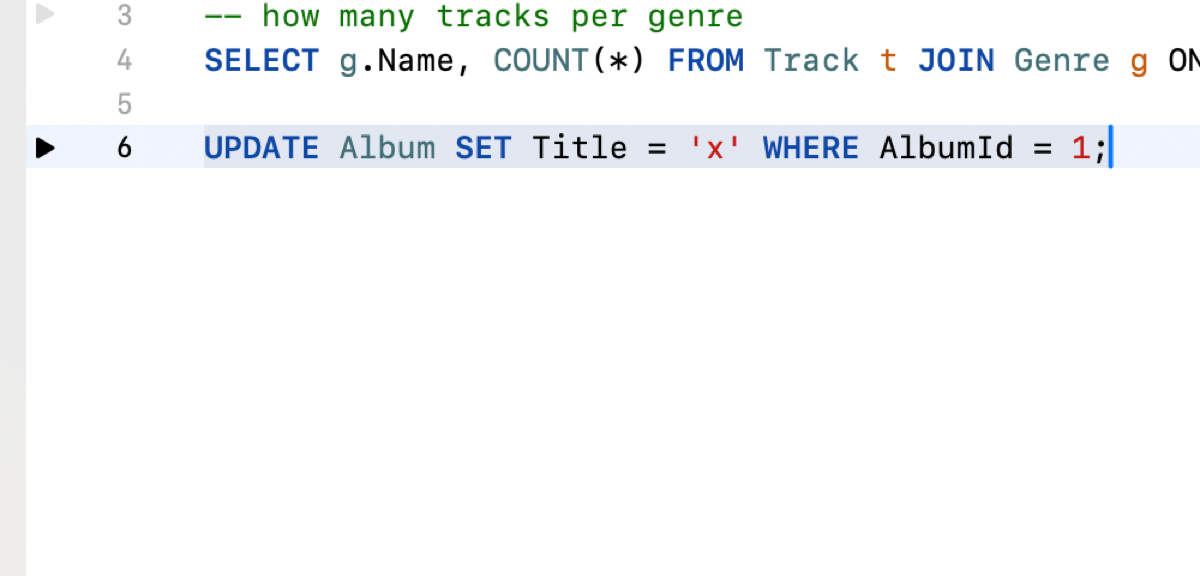
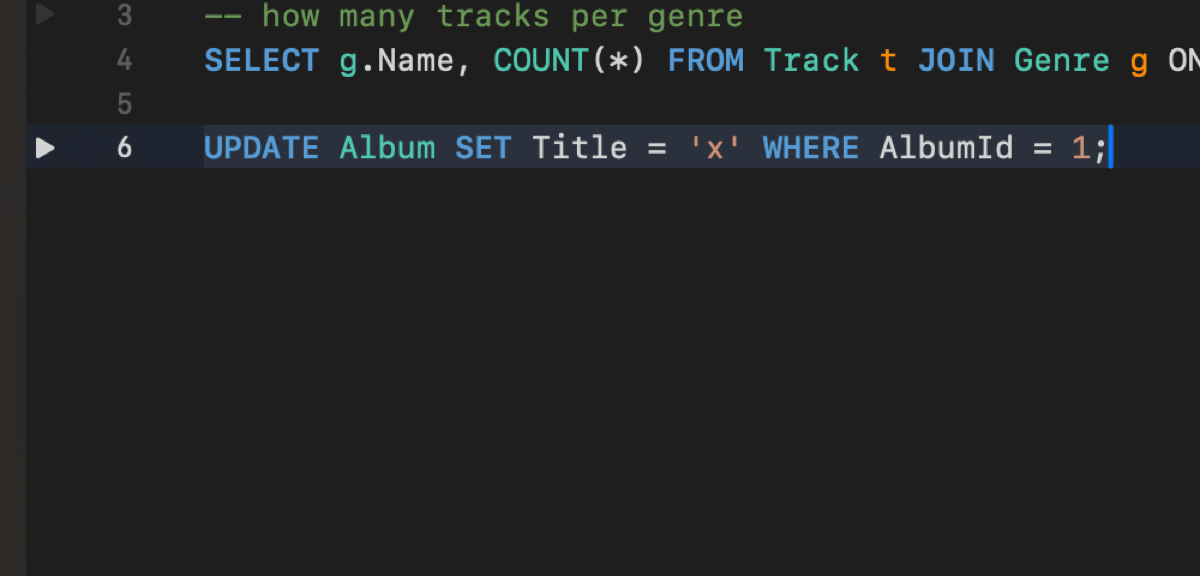
The editor marks which statement it is about to send.
* The statement holding the cursor gets a faint band behind it. It is a decoration, not a selection, so your next keystroke does not replace it.
* Move the pointer over the gutter and a run button appears beside every statement. Click one to run that statement while the cursor is elsewhere. Their column is reserved at all times, so revealing them never shifts the text.
* A run button takes the same [safe mode](/features/safe-mode) checks and [parameter](/features/query-parameters) prompts as any other run, and dims while a query is running.
* VoiceOver reads each button as a button naming the line its statement starts on.
* A `BEGIN … END` body counts as one statement, so a trigger or stored procedure gets one button rather than one per line inside it. `BEGIN;` and `BEGIN TRANSACTION;` are statements of their own.
Turn either marker off in **Settings > Editor** with **Highlight current statement** and **Run button beside each statement**.
## Run your first query
Press `Cmd+T`, or choose **File > New Tab**.
The toolbar picker binds this tab to one database. Changing it later affects this tab only.
Suggestions arrive as you type: tables after FROM and JOIN, a table's columns after its alias and a dot. See [Autocomplete](/features/autocomplete).
The statement under the cursor runs. Rows land in the grid below, under a tab named after the table they came from. See [Query Results](/features/query-results).
Instead of hardcoding a value, write `:name` and fill it in when the query runs. See [Query Parameters](/features/query-parameters).
`Cmd+O` opens a `.sql`, `.psql` or `.pgsql` file as a query tab that `Cmd+S` writes back to. See [SQL Files](/features/sql-files).
## Running several statements
To run the whole tab, press `Cmd+Shift+Enter`, choose **Execute All Statements** from the Execute button's menu, or use **Query > Execute All Statements**. Nothing needs to be selected first. Select text and `Cmd+Enter` runs the selection instead.
A batch runs top to bottom:
* On engines with transactions, the batch runs inside one. A failure stops it and rolls back everything before it. Engines without transactions run each statement as-is, with nothing to roll back.
* The error names its place in the run: "Statement 3/5 failed: …".
* Each statement gets its own result tab, and each is recorded separately in [query history](/features/query-history).
## Statement markers
The editor marks which statement it is about to send.
* The statement holding the cursor gets a faint band behind it. It is a decoration, not a selection, so your next keystroke does not replace it.
* Move the pointer over the gutter and a run button appears beside every statement. Click one to run that statement while the cursor is elsewhere. Their column is reserved at all times, so revealing them never shifts the text.
* A run button takes the same [safe mode](/features/safe-mode) checks and [parameter](/features/query-parameters) prompts as any other run, and dims while a query is running.
* VoiceOver reads each button as a button naming the line its statement starts on.
* A `BEGIN … END` body counts as one statement, so a trigger or stored procedure gets one button rather than one per line inside it. `BEGIN;` and `BEGIN TRANSACTION;` are statements of their own.
Turn either marker off in **Settings > Editor** with **Highlight current statement** and **Run button beside each statement**.
 ### Moving between statements
`Ctrl+Cmd+Left` and `Ctrl+Cmd+Right` step to the previous and next statement. From part-way through a statement, the first press back lands on that statement's own start. Neither wraps.
`Ctrl+Cmd+Enter` runs the statement the cursor is in and then moves to the next one, so a script can be worked through without reaching for the pointer. The cursor moves first, so the next statement is visible while the current one runs.
`Option+Shift+Up` and `Option+Shift+Down` extend the selection by a statement, the way macOS extends a selection by a paragraph.
A statement hidden inside a [collapsed fold](/features/code-folding) unfolds when the cursor lands on it. All three commands are in the Query menu and rebindable in **Settings > Keyboard**.
## Selecting text
Double-click takes a word, triple-click takes a line, and holding the button after either keeps
extending at that size: a double-click drag moves whole words, a triple-click drag moves whole
lines. Drag back past where the gesture started and that first word or line stays whole.
`Shift`-click moves the far end of the selection and leaves the end you started from where it is, so
a `Shift`-click on the other side of the anchor turns the selection around instead of trimming it.
`Shift`-double-click and `Shift`-triple-click do the same to whole words and whole lines.
Operators select as one unit. Double-click the `=` in `WHERE id = 1` and the operator comes back;
`<=` and `||` come back whole.
Drag past the top or bottom edge and the editor scrolls to follow at a steady speed. Extending with
`Shift`+arrow follows the end that is moving, so the moving edge stays on screen no matter how far
the selection already runs.
The JSON viewer, a table's DDL and an import preview are read-only, and take the same arrow-key
movement and `Shift`+arrow selection as the editor here.
## Inline diagnostics
Problems more typing cannot fix are underlined 500ms after you stop typing, and the underline clears as soon as you fix it. A red underline marks a structural mistake:
| Underlined in red | Message |
| --------------------------------------------------------------- | --------------------------- |
| A closing bracket with no opener, or one closing the wrong kind | No matching opening bracket |
| A `/*` with no `*/` after it | Unterminated comment |
An orange underline marks a character that looks like SQL but reaches the server as something else. Chinese, Japanese and Korean input methods type these in full-width mode, and text pasted from a document or a chat often carries them. `SELECT 1;` looks like a complete statement, but `;` does not end it, so the editor and the server read it and the statement after it as one.
| Underlined in orange | Type instead |
| ----------------------------------------------------------------------------------- | -------------------------------- |
| Full-width punctuation, such as `;` `,` `(` `)` `=` | The ASCII character it resembles |
| Full-width letters and digits, such as `SELECT` or `1` | ASCII letters and digits |
| Curly quotes `‘` `’` `“` `”` | A straight `'` or `"` |
| A no-break space, an ideographic space, or a typographic space such as a thin space | An ordinary space |
Each message names the character and the ASCII character to type instead. **Query > Remove Invisible Characters** turns every flagged space into an ordinary one in a single step. Orange underlines appear on SQL connections only, and none of them stops a query from running.
Full-width letters and digits inside a name written in another script, such as `売上2024`, are not underlined. Full-width punctuation is, even inside a name: both parentheses in `价格(元)` are flagged. Write such a name as a quoted identifier and the underline goes.
Text between `'`, `"` or `` ` `` quotes and text in a `--` or `/* */` comment is not checked. Neither is a `#` comment on MySQL and MariaDB, a `$$` body on PostgreSQL, or a `[bracketed]` name on SQL Server and SQLite. On other engines, a `#` comment, a `$$` body or a bracketed name is checked like the rest of the query.
A half-written statement is never flagged. An opener you have not closed yet, a string you are still typing, and brackets inside a string or a comment are all left alone. Documents over 100,000 characters are not checked at all.
Switching tabs or loading a query checks the new text the same way, without a keystroke. Rest the pointer on an underline to read its message. In VoiceOver, the rotor lists every underline under **Query Issues**, each read with its message.
On MongoDB connections the query parser runs as well, so an unknown collection method or a query that does not start with `db.` is underlined with the reason. Where the parser names the method, the method name itself is what gets marked.
## Per-tab database picker
The editor toolbar carries a database picker, or a schema picker depending on the engine. Each tab binds to its own database, and switching the active database elsewhere leaves existing tabs on theirs. The picker lists what the sidebar lists, so it follows the sidebar's database filter.
PostgreSQL, Redshift and CockroachDB reconnect the session to change database, so their picker shows a lock instead of a menu. The tab keeps the database it opened with, and a tab bound to anything other than the connection's active database runs on a separate connection. See [Cross-Database Tabs](/databases/postgresql#cross-database-tabs).
## Find and replace
Press `Cmd+F` to open the find panel, `Cmd+G` and `Cmd+Shift+G` to walk the matches. Switch the panel to Replace mode to replace the current match or all of them. Match modes are contains, matches word, starts with, ends with, and regular expression, each with match case and wrap around toggles.
The editor also carries multiple cursors, for editing several places at once.
## Formatting
Press `Cmd+Shift+L` to format the statement at the cursor. The toolbar's format button and **Query > Format Query** do the same, and the shortcut is rebindable in **Settings > Keyboard**.
The token-based formatter breaks a line per clause, indents two spaces, uppercases keywords, and keeps your comments, string literals, cursor position and dialect identifier quoting (MySQL backticks, PostgreSQL double quotes). JOINs, subqueries, CASE expressions, recursive CTEs, window functions and set operations are all handled. Procedural blocks pass through with minimal changes: PL/pgSQL `DO`, stored procedures, T-SQL `BEGIN`/`END`.
**Before**:
```sql theme={null}
select u.id,u.name,count(o.id) as order_count from users u left join orders o on u.id=o.user_id where u.status='active' group by u.id,u.name having count(o.id)>5 order by order_count desc;
```
**After**:
```sql theme={null}
SELECT
u.id,
u.name,
COUNT(o.id) AS order_count
FROM users u
LEFT JOIN orders o ON u.id = o.user_id
WHERE u.status = 'active'
GROUP BY u.id, u.name
HAVING COUNT(o.id) > 5
ORDER BY order_count DESC;
```
## Invisible characters
Characters that would otherwise draw as nothing, or as an ordinary space, are marked where they sit. A mark is the character itself: select it, arrow past it, or delete it like any other text.
### Moving between statements
`Ctrl+Cmd+Left` and `Ctrl+Cmd+Right` step to the previous and next statement. From part-way through a statement, the first press back lands on that statement's own start. Neither wraps.
`Ctrl+Cmd+Enter` runs the statement the cursor is in and then moves to the next one, so a script can be worked through without reaching for the pointer. The cursor moves first, so the next statement is visible while the current one runs.
`Option+Shift+Up` and `Option+Shift+Down` extend the selection by a statement, the way macOS extends a selection by a paragraph.
A statement hidden inside a [collapsed fold](/features/code-folding) unfolds when the cursor lands on it. All three commands are in the Query menu and rebindable in **Settings > Keyboard**.
## Selecting text
Double-click takes a word, triple-click takes a line, and holding the button after either keeps
extending at that size: a double-click drag moves whole words, a triple-click drag moves whole
lines. Drag back past where the gesture started and that first word or line stays whole.
`Shift`-click moves the far end of the selection and leaves the end you started from where it is, so
a `Shift`-click on the other side of the anchor turns the selection around instead of trimming it.
`Shift`-double-click and `Shift`-triple-click do the same to whole words and whole lines.
Operators select as one unit. Double-click the `=` in `WHERE id = 1` and the operator comes back;
`<=` and `||` come back whole.
Drag past the top or bottom edge and the editor scrolls to follow at a steady speed. Extending with
`Shift`+arrow follows the end that is moving, so the moving edge stays on screen no matter how far
the selection already runs.
The JSON viewer, a table's DDL and an import preview are read-only, and take the same arrow-key
movement and `Shift`+arrow selection as the editor here.
## Inline diagnostics
Problems more typing cannot fix are underlined 500ms after you stop typing, and the underline clears as soon as you fix it. A red underline marks a structural mistake:
| Underlined in red | Message |
| --------------------------------------------------------------- | --------------------------- |
| A closing bracket with no opener, or one closing the wrong kind | No matching opening bracket |
| A `/*` with no `*/` after it | Unterminated comment |
An orange underline marks a character that looks like SQL but reaches the server as something else. Chinese, Japanese and Korean input methods type these in full-width mode, and text pasted from a document or a chat often carries them. `SELECT 1;` looks like a complete statement, but `;` does not end it, so the editor and the server read it and the statement after it as one.
| Underlined in orange | Type instead |
| ----------------------------------------------------------------------------------- | -------------------------------- |
| Full-width punctuation, such as `;` `,` `(` `)` `=` | The ASCII character it resembles |
| Full-width letters and digits, such as `SELECT` or `1` | ASCII letters and digits |
| Curly quotes `‘` `’` `“` `”` | A straight `'` or `"` |
| A no-break space, an ideographic space, or a typographic space such as a thin space | An ordinary space |
Each message names the character and the ASCII character to type instead. **Query > Remove Invisible Characters** turns every flagged space into an ordinary one in a single step. Orange underlines appear on SQL connections only, and none of them stops a query from running.
Full-width letters and digits inside a name written in another script, such as `売上2024`, are not underlined. Full-width punctuation is, even inside a name: both parentheses in `价格(元)` are flagged. Write such a name as a quoted identifier and the underline goes.
Text between `'`, `"` or `` ` `` quotes and text in a `--` or `/* */` comment is not checked. Neither is a `#` comment on MySQL and MariaDB, a `$$` body on PostgreSQL, or a `[bracketed]` name on SQL Server and SQLite. On other engines, a `#` comment, a `$$` body or a bracketed name is checked like the rest of the query.
A half-written statement is never flagged. An opener you have not closed yet, a string you are still typing, and brackets inside a string or a comment are all left alone. Documents over 100,000 characters are not checked at all.
Switching tabs or loading a query checks the new text the same way, without a keystroke. Rest the pointer on an underline to read its message. In VoiceOver, the rotor lists every underline under **Query Issues**, each read with its message.
On MongoDB connections the query parser runs as well, so an unknown collection method or a query that does not start with `db.` is underlined with the reason. Where the parser names the method, the method name itself is what gets marked.
## Per-tab database picker
The editor toolbar carries a database picker, or a schema picker depending on the engine. Each tab binds to its own database, and switching the active database elsewhere leaves existing tabs on theirs. The picker lists what the sidebar lists, so it follows the sidebar's database filter.
PostgreSQL, Redshift and CockroachDB reconnect the session to change database, so their picker shows a lock instead of a menu. The tab keeps the database it opened with, and a tab bound to anything other than the connection's active database runs on a separate connection. See [Cross-Database Tabs](/databases/postgresql#cross-database-tabs).
## Find and replace
Press `Cmd+F` to open the find panel, `Cmd+G` and `Cmd+Shift+G` to walk the matches. Switch the panel to Replace mode to replace the current match or all of them. Match modes are contains, matches word, starts with, ends with, and regular expression, each with match case and wrap around toggles.
The editor also carries multiple cursors, for editing several places at once.
## Formatting
Press `Cmd+Shift+L` to format the statement at the cursor. The toolbar's format button and **Query > Format Query** do the same, and the shortcut is rebindable in **Settings > Keyboard**.
The token-based formatter breaks a line per clause, indents two spaces, uppercases keywords, and keeps your comments, string literals, cursor position and dialect identifier quoting (MySQL backticks, PostgreSQL double quotes). JOINs, subqueries, CASE expressions, recursive CTEs, window functions and set operations are all handled. Procedural blocks pass through with minimal changes: PL/pgSQL `DO`, stored procedures, T-SQL `BEGIN`/`END`.
**Before**:
```sql theme={null}
select u.id,u.name,count(o.id) as order_count from users u left join orders o on u.id=o.user_id where u.status='active' group by u.id,u.name having count(o.id)>5 order by order_count desc;
```
**After**:
```sql theme={null}
SELECT
u.id,
u.name,
COUNT(o.id) AS order_count
FROM users u
LEFT JOIN orders o ON u.id = o.user_id
WHERE u.status = 'active'
GROUP BY u.id, u.name
HAVING COUNT(o.id) > 5
ORDER BY order_count DESC;
```
## Invisible characters
Characters that would otherwise draw as nothing, or as an ordinary space, are marked where they sit. A mark is the character itself: select it, arrow past it, or delete it like any other text.

 | Character | Shown as |
| ------------------------------------------------------------------------------------------------------------ | -------------------------------------------------------------------------------- |
| Control characters, such as a backspace (U+0008) or NUL (U+0000) | A box with the character's short name: `BS`, `NUL`, `ESC` |
| Zero-width and formatting characters: zero-width space, byte order mark, soft hyphen, bidirectional controls | A box with the short name: `ZWSP`, `BOM`, `SHY`, `RLO` |
| Line and paragraph separators (U+2028, U+2029) | A box, `LSEP` or `PSEP`. The line continues past it, as it does for the database |
| Non-breaking, ideographic and other special spaces | An outline around the space |
Emoji sequences, variation selectors, and the joiners Arabic, Persian and Indic text rely on are left unmarked.
Control characters never arrive by typing. A stray backspace an input method sends, or a chord such as `Ctrl+Option+H`, is dropped. Pasted text is kept exactly as copied, with every invisible character marked.
Choose **Query > Remove Invisible Characters** to clean a query. With nothing selected, it removes marked characters outside string literals, quoted identifiers and comments. Special spaces, form feeds and vertical tabs become ordinary spaces, and a line or paragraph separator becomes a line break. Select text first to clean inside a literal as well. `Cmd+Z` undoes the whole change.
Invisible characters around a statement, such as a byte order mark in front of `SELECT` or a non-breaking space on the line after it, are not sent with it, and a line holding nothing else gets no run button. A NUL character inside a statement stops it from being sent. Remove the character and run it again.
A database often quotes the offending character back in its error message. Error messages show each marked character as its short name in angle brackets, so SQLite's reply to a stray backspace reads `unrecognized token: ""`. The error banner, query history and the other panes that show a database error also color the name orange and tint a special space. In an error alert, a special space shows as an ordinary space. The banner's copy button copies the database's text as it arrived, for a search or a bug report.
To hide the marks in the editor, turn off **Show invisible characters** in **Settings > Editor**. Read-only views, such as the AI assistant's code blocks, and error messages always show them.
## AI assistance
**Explain with AI** (`Cmd+L`) explains the query at the cursor and **Optimize with AI** (`Cmd+Option+L`) suggests improvements. When a query fails, **Fix with AI** in the error banner rewrites it. Inline suggestions complete your SQL as ghost text: `Tab` accepts, `Escape` dismisses. See [AI Assistant](/features/ai-assistant) for setup.
For the execution plan rather than an opinion, press `Cmd+Option+E` and see [Explain Visualization](/features/explain-visualization).
## Editor settings
**Settings > Editor** holds line numbers, current-line and current-statement highlighting, word wrap, [code folding](/features/code-folding), the per-statement run button, [invisible characters](#invisible-characters), tab width, auto-uppercase keywords, [query parameters](/features/query-parameters), and [vim mode](/features/vim-mode). Editor font family and size are on that same tab.
The font size set by `Cmd+=` and `Cmd+-` is the Editor Font setting, so it is kept between launches. See [Query Tabs](/features/tabs#switching-tabs).
| Character | Shown as |
| ------------------------------------------------------------------------------------------------------------ | -------------------------------------------------------------------------------- |
| Control characters, such as a backspace (U+0008) or NUL (U+0000) | A box with the character's short name: `BS`, `NUL`, `ESC` |
| Zero-width and formatting characters: zero-width space, byte order mark, soft hyphen, bidirectional controls | A box with the short name: `ZWSP`, `BOM`, `SHY`, `RLO` |
| Line and paragraph separators (U+2028, U+2029) | A box, `LSEP` or `PSEP`. The line continues past it, as it does for the database |
| Non-breaking, ideographic and other special spaces | An outline around the space |
Emoji sequences, variation selectors, and the joiners Arabic, Persian and Indic text rely on are left unmarked.
Control characters never arrive by typing. A stray backspace an input method sends, or a chord such as `Ctrl+Option+H`, is dropped. Pasted text is kept exactly as copied, with every invisible character marked.
Choose **Query > Remove Invisible Characters** to clean a query. With nothing selected, it removes marked characters outside string literals, quoted identifiers and comments. Special spaces, form feeds and vertical tabs become ordinary spaces, and a line or paragraph separator becomes a line break. Select text first to clean inside a literal as well. `Cmd+Z` undoes the whole change.
Invisible characters around a statement, such as a byte order mark in front of `SELECT` or a non-breaking space on the line after it, are not sent with it, and a line holding nothing else gets no run button. A NUL character inside a statement stops it from being sent. Remove the character and run it again.
A database often quotes the offending character back in its error message. Error messages show each marked character as its short name in angle brackets, so SQLite's reply to a stray backspace reads `unrecognized token: ""`. The error banner, query history and the other panes that show a database error also color the name orange and tint a special space. In an error alert, a special space shows as an ordinary space. The banner's copy button copies the database's text as it arrived, for a search or a bug report.
To hide the marks in the editor, turn off **Show invisible characters** in **Settings > Editor**. Read-only views, such as the AI assistant's code blocks, and error messages always show them.
## AI assistance
**Explain with AI** (`Cmd+L`) explains the query at the cursor and **Optimize with AI** (`Cmd+Option+L`) suggests improvements. When a query fails, **Fix with AI** in the error banner rewrites it. Inline suggestions complete your SQL as ghost text: `Tab` accepts, `Escape` dismisses. See [AI Assistant](/features/ai-assistant) for setup.
For the execution plan rather than an opinion, press `Cmd+Option+E` and see [Explain Visualization](/features/explain-visualization).
## Editor settings
**Settings > Editor** holds line numbers, current-line and current-statement highlighting, word wrap, [code folding](/features/code-folding), the per-statement run button, [invisible characters](#invisible-characters), tab width, auto-uppercase keywords, [query parameters](/features/query-parameters), and [vim mode](/features/vim-mode). Editor font family and size are on that same tab.
The font size set by `Cmd+=` and `Cmd+-` is the Editor Font setting, so it is kept between launches. See [Query Tabs](/features/tabs#switching-tabs).